
How-to
How to Clean a Laptop Screen and Remove Keyboard Marks
Direct answer
To clean a laptop screen, shut it down and unplug it, then dust it with a dry microfiber cloth. For keyboard marks and fingerprints, spray screen cleaner onto a second cloth until it is barely damp, wipe gently once or twice, and finish with a dry side. Never press hard or spray the screen directly.
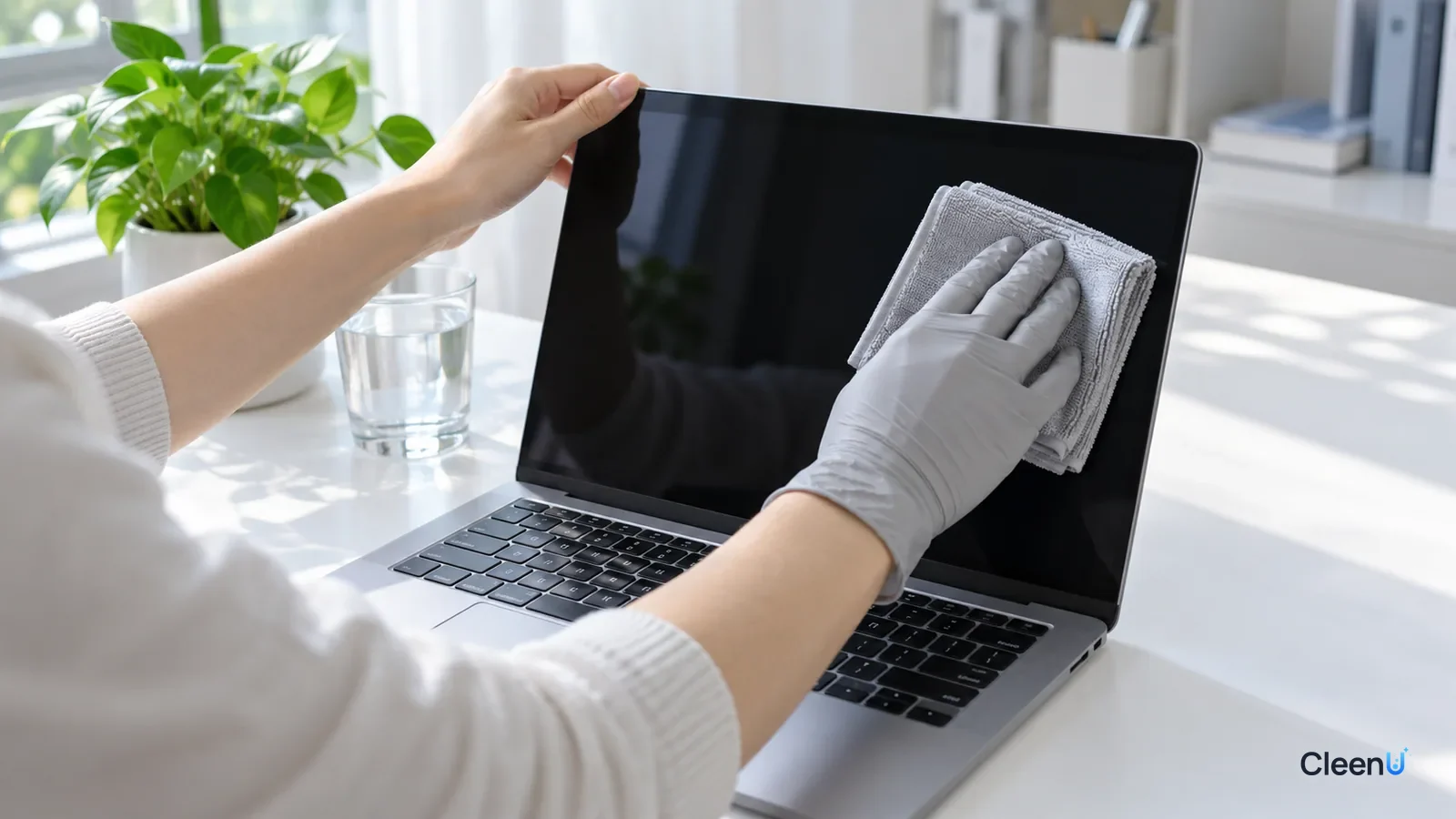
A laptop screen gets dirtier than a phone or a TV, and for a simple reason: it sits a few millimeters above the keyboard. Every time you close the lid, the screen and the keys touch. You adjust the angle a dozen times a day, usually by grabbing the edge of the display. After a few weeks, a neat grid of rectangles shows up across the screen, easiest to see against a dark background. Those are keyboard marks, and nearly every laptop owner runs into them.
The good news is that keyboard marks are almost always an oily film sitting on top of the screen, not damage to it. With the right method, they come off in a few minutes.
Where do keyboard marks come from?
Keyboard marks are skin oil transferred from the keys. As you type, oil, sweat and hand lotion from your fingertips collect on top of the keycaps. When you close the lid, the screen presses against those keys and picks up the oil, one key-shaped patch at a time. Because the lid closes in the same spot every time, each layer lands on the last, and the marks get sharper.
Thin and light laptops have very little clearance between the screen and the keyboard, so the screen often touches the keys directly and the marks are heavier. Keycaps that have worn shiny also carry more oil to transfer.
Besides keyboard marks, a laptop screen collects three other kinds of grime. Dust is pulled onto the display by static while it is on. Fingerprints build up along the edges where you adjust the angle. And tiny droplets land on the screen when you talk, cough or sneeze in front of it. Dust is loose and wipes away dry. Fingerprints, keyboard marks and droplet spots are oily, though, and a dry cloth only smears them around. They need a mild cleaning solution to loosen the film so the cloth can lift it off.
Why laptop screens need a gentle touch
The outermost layer of most laptop screens is a thin functional coating. Matte screens have an anti-glare coating; glossy screens usually have an anti-reflective or anti-fingerprint layer; some premium models add a dedicated anti-reflective treatment. These coatings are thin and sensitive to both harsh chemicals and friction.
That is why a few common habits do more harm than good:
Skip window cleaner, ammonia-based cleaners and strong alcohol. They cut grease, but they can dull the coating, leave it hazy or blotchy, and over time wear down anti-fingerprint layers.
Skip paper towels, tissues and bath towels. Paper fibers are stiff enough to leave fine scratches and lint, and terry loops drag grit from the dust across the screen.
Don't press. A laptop display is smaller than a TV, but it is the same LCD or OLED construction. Pressing causes ripples, and hard pressure can leave a permanent mark.
Never spray the screen directly. Liquid runs down to the bottom bezel and seeps into the gap, where it can reach the display cable and hinge. That is a far bigger problem than a smudged screen.
CleenU Screen Cleaner is one example of a cleaner made for this: a neutral, ammonia-free, alcohol-free screen spray with a pH of 6.5 to 7.5, made with mild nonionic surfactants and low-residue additives, and no abrasive particles. Spray it onto the cloth until it is just damp and it dries in seconds, which suits coated screens on laptops, monitors, tablets and TVs.
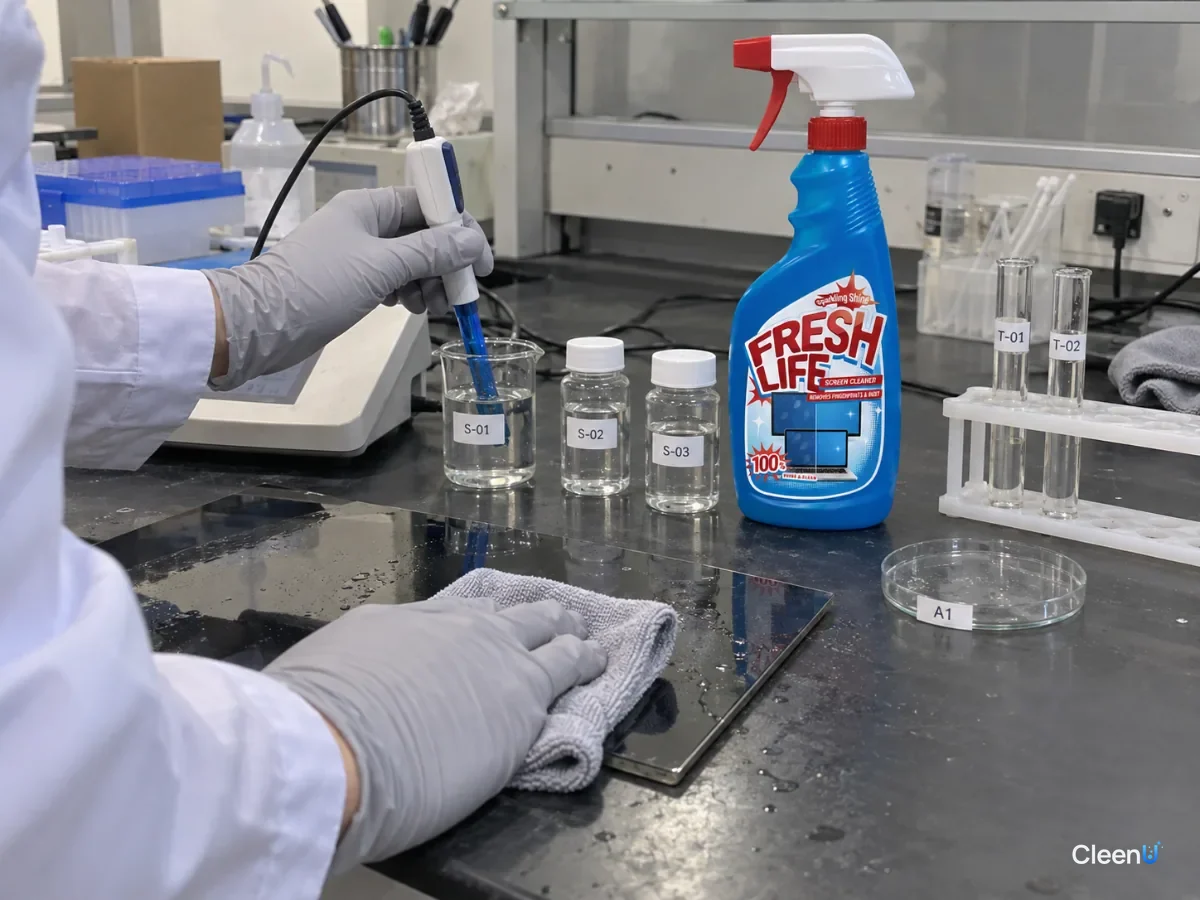
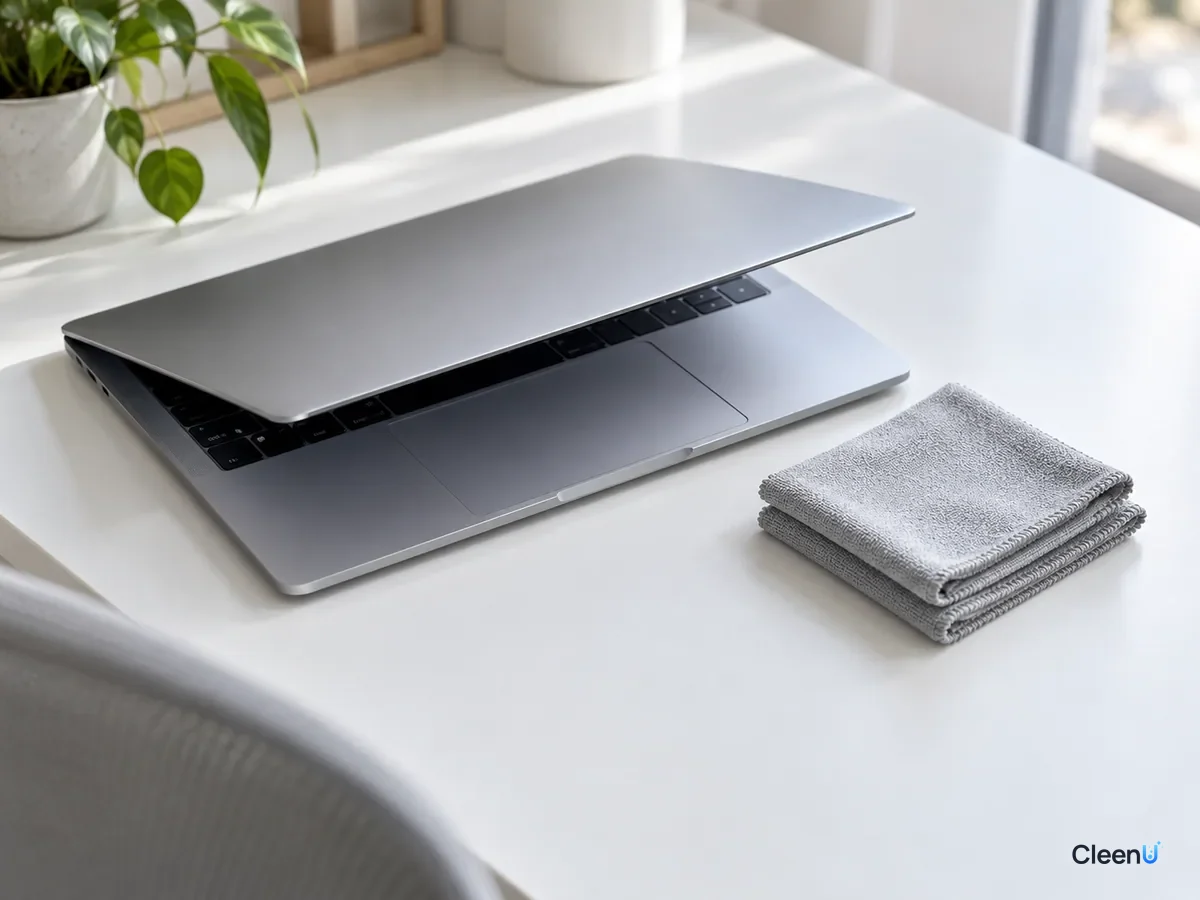
Step by step: clean a laptop screen and lift keyboard marks
Power off, dust, wipe, dry: four steps to a clean laptop screen
Shut down and unplug
Fully shut the laptop down instead of just closing the lid to sleep, and unplug the charger. A black screen shows oily marks and dust most clearly, and a powered-off laptop won't register stray taps on the keyboard or trackpad.
Dust with a dry cloth first
Steady the back of the lid at the top edge with one hand. With the other, sweep a dry microfiber cloth lightly from top to bottom to lift loose dust. Removing dust first keeps grit from scratching the screen during the damp wipe.
Caution:Hold the lid from the back at the top. Don't grip the display by its sides and flex it; hinges and bezels don't like uneven force.
Spray the cloth and wipe the keyboard marks
Spray screen cleaner onto the second cloth, one or two pumps, until it is barely damp. Keep your hand flat and wipe the areas with keyboard marks and fingerprints in one direction or small circles. For heavy marks, let the damp cloth rest on the spot for a few seconds so the solution loosens the film, then wipe once or twice more.
Caution:The cloth should be damp, never wet enough to squeeze out a drop. Excess liquid pools at the bottom edge and seeps behind the bezel.
Dry with a clean side and check
Turn the cloth to a clean, dry side and wipe the whole screen lightly to pick up any leftover moisture. Wait a few seconds until the screen is completely dry before closing the lid or turning the laptop on.
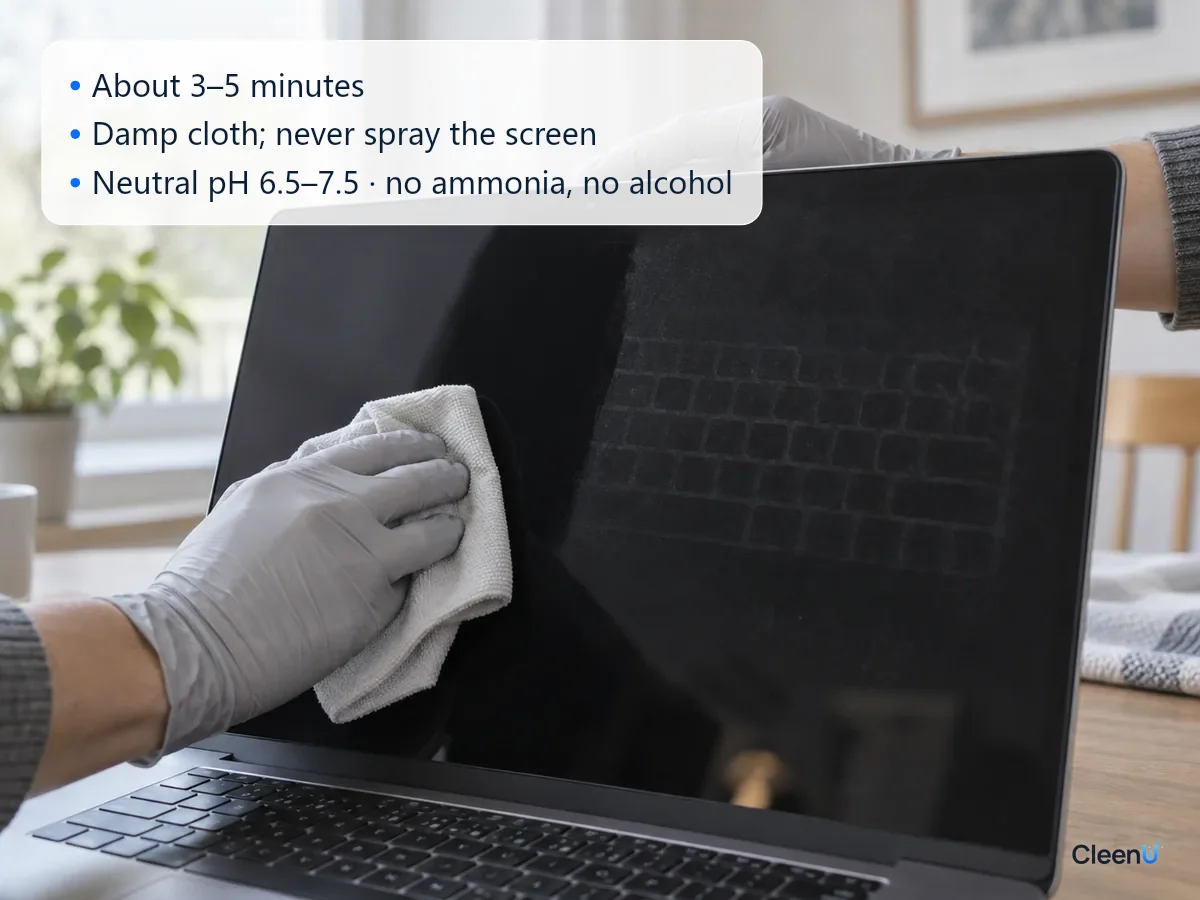
How to tell the screen is really clean
With the laptop off, look at the screen straight on and then from an angle. Head-on, check for leftover rectangles and fingerprints. At an angle, look for wipe lines and rainbow streaks.
Then turn it on and open a solid white or light gray image full screen. White exposes dust spots and hazy patches that disappear against a dark background. Switch to solid black to check for oil marks and streaks. If you can't see marks against either background, you're done.
If faint keyboard marks remain, the film had built up for a while. Wipe once more with a barely damp cloth; there is no need for more cleaner or more pressure. If a mark stays in the same place after several careful wipes and that area looks different in color or brightness when the screen is on, it may be worn coating rather than grime. Stop wiping at that point.
Before you wipe a laptop screen, make sure
- The laptop is fully shut down and unplugged
- You have two clean microfiber cloths, one for dry dusting and one for damp wiping
- The cleaner goes on the cloth, not on the screen
- The cloth is barely damp and won't release a drop when squeezed
- Your hand stays flat and you never press on the display
How to keep keyboard marks from coming back
Keyboard marks will return, but a few habits slow them down a lot.
Wipe the keyboard before you close the lid. A quick pass over the tops of the keys with a dry microfiber cloth removes the oil that would otherwise transfer to the screen.
Use a thin keyboard cover cloth. Some laptops ship with a thin cloth you can lay over the keyboard before closing the lid, so the screen never touches the keys. Keep it thin: if the lid resists when you close it, the cloth is putting pressure on the screen and hinge, so switch to a thinner one or skip it.
Keep your hands clean. Wash up before long typing sessions, and let hand lotion soak in before you start.
Clean on a schedule. For a daily-use laptop, dust the screen once a week and damp-wipe keyboard marks about every two weeks. Deal with fingerprints and oily spots as they appear; the longer the film builds, the harder it is to remove.
Some brands, including Apple on its MacBook displays, put specialized anti-reflective coatings on their screens and publish their own cleaning guidance. Check the manufacturer's instructions before you clean. For phones, TVs and monitors, see our screen cleaning guide, and for a full walkthrough on large displays, see how to clean a TV screen without streaks.
Stop if you see any of these
Whitish, blotchy or worn-looking patches that won't wipe away; a spot that shows odd color, bright pixels or ripples that don't fade after the screen is on; liquid that has seeped into the bezel or the keyboard. Stop cleaning and shut the laptop down, let it dry out completely, and contact the manufacturer's support about coating damage or liquid exposure.
Written for: Laptop owners who want to remove keyboard marks, fingerprints and dust without risking the screen coatingNot for: Screens that are already scratched, have peeling coating or liquid damage; devices whose maker specifies water only or its own wipes
Laptop screen cleaning questions people ask first
Can keyboard marks on a laptop screen be removed?
Yes. Most keyboard marks are transferred skin oil, and they come off with screen cleaner sprayed on a cloth and one or two gentle wipes. A mark that stays put in the same spot may be worn coating.
Can I use an eyeglass cloth on my laptop screen?
Yes. A clean eyeglass cloth is microfiber and works for dusting and light wiping. Keep it clean, because a cloth carrying dust and oil will smear the screen.
Can I use alcohol wipes on a laptop screen?
Not as a habit. Strong alcohol can wear down screen coatings, especially anti-fingerprint and anti-reflective layers. A neutral, alcohol-free screen cleaner is the safer everyday choice.
Can I clean the screen while the laptop is on?
Turn it off first. A running screen is warm and carries static, oily marks are hard to see, and it is easy to trigger the keyboard or trackpad by accident.
How often should I clean my laptop screen?
Dust it weekly and damp-wipe keyboard marks about every two weeks. Handle heavy fingerprints as they appear, before the film builds up.
Will a keyboard cover cloth damage the screen?
A thin one won't. A thick cloth puts pressure on the screen and hinge; if you feel resistance when closing the lid, use a thinner cloth or none.
Can I use screen cleaner on my laptop keyboard?
No. Screen cleaner is made for displays, not keyboards or the inside of the computer, and liquid that seeps between the keys can reach the circuitry. Turn the laptop off, clear crumbs with a soft brush or compressed air, wipe the keycaps with a cloth dampened until it barely holds water, then dry them with a dry cloth.
For a neutral, ammonia-free, alcohol-free screen spray that dries in seconds on the cloth, try Screen Cleaner.
Keyboard marks on a laptop screen are almost always skin oil transferred from the keys when the lid closes. Shut down and unplug, dust with a dry microfiber cloth, then wipe with screen cleaner sprayed onto a second cloth and dry with a clean side. Skip window cleaner, strong alcohol and paper towels, never press or spray the screen directly, and wipe the keys before closing the lid to keep the marks from coming back.