
How-to
How to Clean Screens Safely: Phone, Laptop, TV, and Monitor
Direct answer
Power off, then lift the dust with a clean microfiber cloth. If you need a cleaner, choose a neutral one without ammonia or alcohol, spray it on the cloth rather than the screen, wipe gently in one direction and finish with a dry side of the cloth. Skip paper towels, glass cleaner and pressing hard.
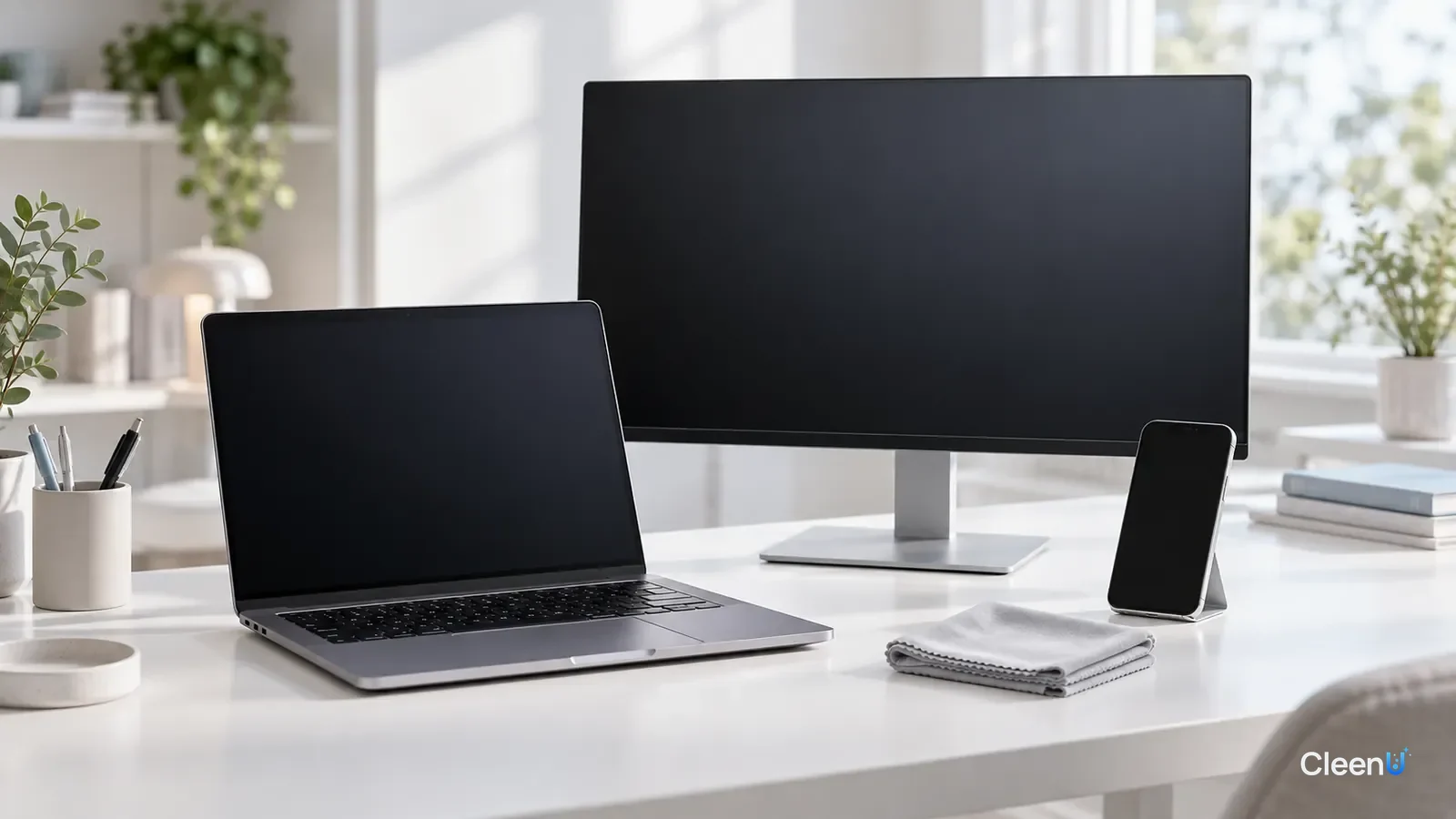
A phone gets touched hundreds of times a day, a laptop screen picks up keyboard marks, the TV collects dust, and kids leave a layer of handprints on the tablet. Screens look a lot like glass, so plenty of people reach for glass cleaner, alcohol wipes or paper towels. The screen ends up streaky, sometimes with rainbow smears or a worn coating.
The biggest difference between a screen and ordinary glass is the invisible coating on top: an oil-repellent (oleophobic) layer, an anti-glare layer, or on many TVs a plastic polarizing film.
What is on your screens
Fingerprints and oily sheen. Fingers leave skin oil and sweat, mostly oil, which spreads into smudges and a greasy shine. Plain water just smears it. A gentle surfactant is needed to dissolve the oil and carry it off.
Dust. A powered screen builds up static and pulls dust out of the air, which is especially noticeable on TVs and monitors. That dust can include hard specks, and dry-wiping with pressure drags them across the surface and leaves fine scratches. Remove loose dust gently first, then wipe damp.
Spatter and droplets. Tiny droplets from talking and dried drink splashes contain salt, sugar and protein, and they need a little moisture to wipe away.
What screen coatings cannot handle
Most phones and tablets have an oleophobic coating that makes fingers glide and fingerprints wipe off easily. Monitors and laptops often have an anti-glare coating, and many TVs have a plastic polarizing film. All of them are more delicate than plain glass.
Ammonia. Some glass cleaners contain ammonia, which can damage anti-glare coatings and leave hazy patches.
Alcohol and strong solvents. Repeated wiping with high-strength alcohol can speed up wear on the oleophobic coating, so the screen grabs fingerprints more and more easily.
Rough materials. Paper towels and regular towels have coarse fibers and can carry grit. Repeated wiping leaves fine scratches and lint.
Liquid getting inside. Screen edges, buttons and speaker openings all have gaps. Spray cleaner straight onto the screen and liquid can run into the device.
Pressure. Pressing hard on an LCD can leave pressure marks or even damage the panel.
So the rules are simple: neutral pH, no ammonia or alcohol, spray the cloth, and wipe gently.
Device by device: how to clean each one
Phones, computers, TVs, keyboards and mice
Phones and tablets
Turn off the screen and wipe with a lightly misted cloth
Lock or power off the device and wipe loose dust with a dry microfiber cloth. Mist the cloth, not the screen, until it is just damp, wipe gently in one direction, then go over it with a clean, dry part of the cloth. Take the case off and wash it separately, letting it dry fully.
Caution:Keep liquid away from the charging port, earpiece and speaker openings.
Laptops and monitors
Power off, let the screen cool and wipe without pressing
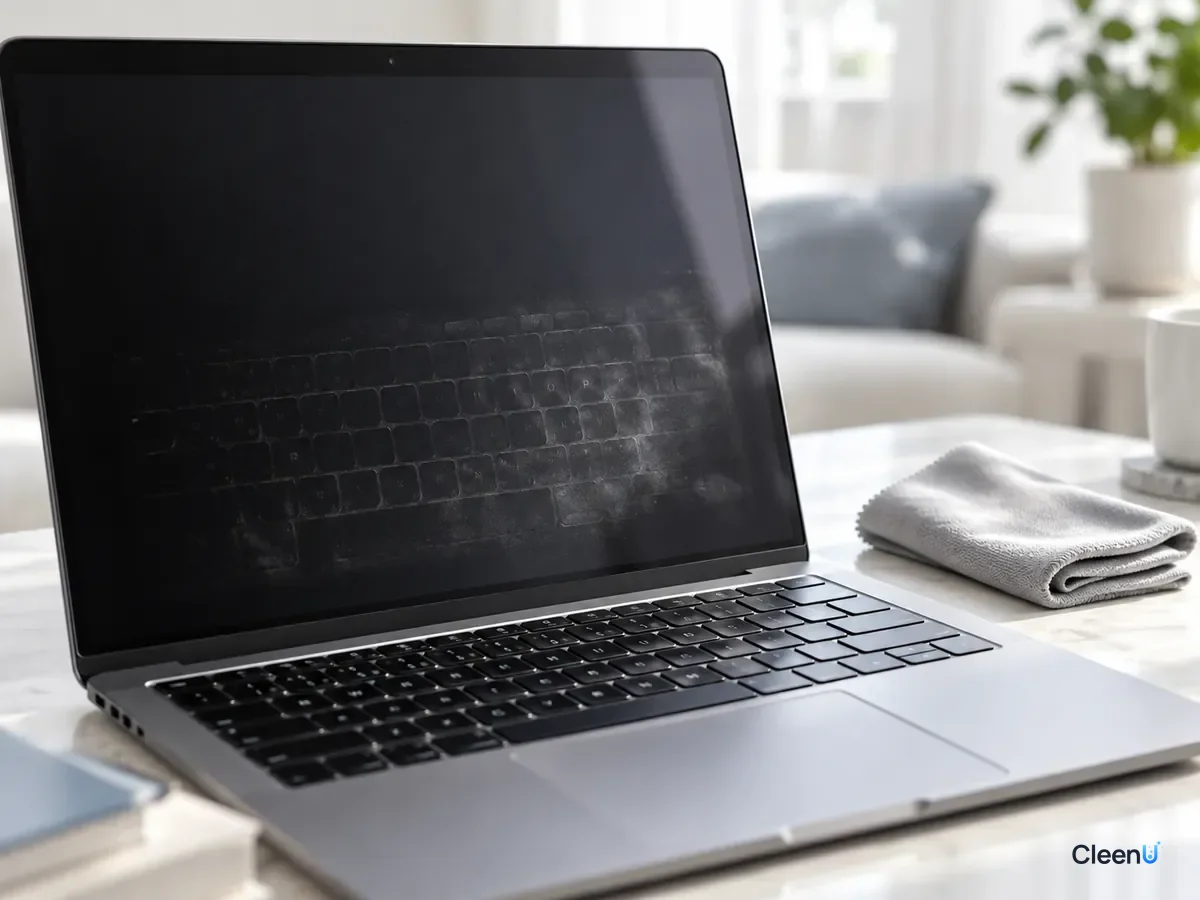
Turn off the computer or monitor and let the screen cool. Dust it with a dry cloth, spray the cleaner onto the cloth, and wipe lightly from one side to the other. Keyboard marks on a laptop screen are transferred skin oil and come off in one or two passes. Do not press.
TVs and large screens
Use foam on big screens and work from the center outward
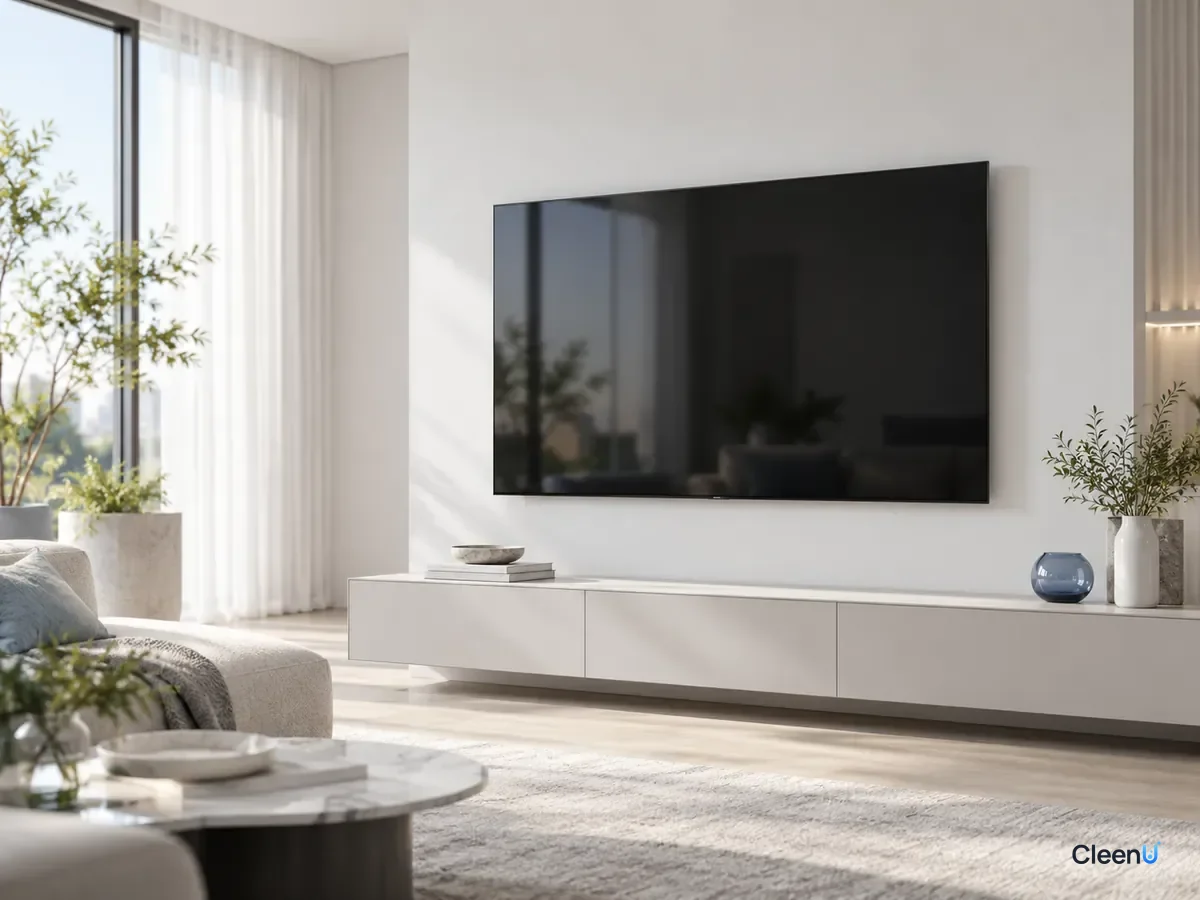
Turn the TV off, unplug it and let the screen cool. Dust it gently with a dry cloth. Foam screen cleaner does not drip or run, so apply it to the cloth or put a small dab in the middle of the screen, spread it gently outward, and finish with a dry part of the cloth.
Caution:Steady a large screen with one hand while you wipe; do not push hard on it.
Keyboards, mice and controllers
Disconnect, then wipe each piece with a lightly misted cloth
Power off or unplug the device and disconnect charging cables from wireless gear. Turn the keyboard upside down and tap out the crumbs. Mist an electronics surface cleaner onto a microfiber cloth until it is just damp, then wipe the keycaps, mouse and controller shells one by one, running a corner of the cloth along the gaps. Let everything dry before powering back on.
Spray or foam?
Both are common, and the difference is how the cleaner gets onto the screen.
Spray puts a fine mist on the cloth and covers quickly, which suits small and mid-size screens like phones, laptops and monitors. CleenU Screen Cleaner is a neutral spray with no ammonia and no ethanol, pH 6.5–7.5, made with mild nonionic surfactants and low-residue additives. Spray it on the cloth, wipe, and it dries in seconds.
Foam stays where you put it and does not drip, which suits TVs, vertical displays, touchscreen all-in-ones and car screens. On large or upright screens, liquid is less likely to run down into the bezel. CleenU Screen Cleaning Foam is also neutral with no ammonia or ethanol. A small dab covers a section of screen and dries in seconds.
The same rule applies to both: get the product onto the cloth first (or a small dab of foam in the center of the screen), wipe gently and do not press.
What cloth to use on a screen
Microfiber is the best choice: fine fibers, strong pickup of skin oil and no lint. An eyeglass cloth is also microfiber, just smaller, and works well for a phone. Avoid paper towels and regular towels, which have coarse fibers and shed lint and can leave fine marks.
Keep the cloth clean. A cloth that has wiped other greasy surfaces, or one washed with fabric softener, leaves an oily film and streaks on the screen. Use two cloths, one damp and one dry, and wash them regularly in plain water without softener.
E-readers, car displays and touchscreen all-in-ones
E-readers. Many e-reader screens are plastic or coated, softer than phone glass and easier to scratch. Wipe them with a clean microfiber cloth. If you need a damp wipe, use even less cleaner on the cloth and follow immediately with a dry cloth.
Car infotainment screens. Cars see big temperature swings, and a screen that has been baking in the sun is hot. Cleaner flashes off it instantly and streaks. Let the cabin cool, turn off the car or the display, and then clean. Car screens are usually upright, so foam is a better fit than spray because it does not run down into the bezel. Apply it to the cloth or put a small dab in the middle of the screen. Do not use windshield washer fluid or interior cleaners on the screen, since they are not formulated for screen coatings.
Touchscreen all-in-ones and commercial displays. Large and touched constantly, these collect far more fingerprints and oil than a home TV. Dust first with a dry cloth, then clean section by section with foam so the cleaner does not dry before you have wiped it across a big area. Check the manufacturer's guidance first, since some commercial displays specify which cleaners are allowed.
Offices, gaming lounges and shared equipment
Shared keyboards, mice, headsets and screens build up sweat and skin oil much faster than home devices. Shiny keycaps, sticky mice and fingerprint-covered screens all make the equipment less pleasant to use.
A workable routine: wipe high-touch keyboards, mice, controllers and headset shells after every shift or every user. Dust screens daily with a dry cloth and wipe damp when fingerprints show up. Once a week, turn keyboards upside down to tap out debris and run a cloth corner along the gaps between keys.
Power off or disconnect the device, spray the cleaner onto the cloth rather than the equipment, keep the cloth just damp, wipe each piece and let it dry for a minute or two before powering back on. CleenU Gaming Station Electronics Cleaner is made for exactly this: a neutral, fast-drying electronics surface cleaner (pH 6.5–7.5) with no ammonia, bleach or abrasives. Spray it onto a cloth to wipe keycaps, mice, controllers and headset shells, and they air-dry in a minute or two.
Keep in mind that cleaning and disinfecting are different jobs. A cleaner removes sweat, skin oil and dust. If your facility has disinfection requirements, use a product that has been tested and labeled for that purpose, and confirm it is suitable for electronics.
How often to clean screens, and how to keep dust down
Phones and tablets are touched the most, so wipe them every few days and give them a quick dry wipe whenever fingerprints build up. Dust laptops and monitors weekly with a dry cloth and wipe them damp when there are fingerprints or splatter. TVs mostly collect dust, so a gentle dry wipe every week or two is enough. You do not need cleaner every time.
Screens attract dust through static. Cleaning with the power off, and letting the screen dry completely before turning it back on, keeps it from pulling dust straight back. Keeping indoor humidity at a moderate level also reduces static buildup.
Streaks or rainbow smears after cleaning
The most common causes are too much cleaner or a dirty cloth. Use less, switch to a clean microfiber cloth, and finish with a dry side.
Rainbow smears usually come from a very thin residue film that interferes with light. That also points to using too much product or the wrong one, such as a cleaner that contains oil or wax. Wipe again with a clean cloth and a small amount of screen cleaner, then buff dry.
If a spot is invisible with the screen off but shows up once it is on, or it never changes shape no matter how much you wipe, the problem may be inside the screen: pressure damage, dead pixels or moisture. Cleaning cannot fix that, so contact the manufacturer for service.
After cleaning a screen, check these
- No streaks or rainbow smears in side light with the screen off
- No liquid in the screen edges, buttons or ports
- The device is completely dry before you power it on or charge it
- Cloths washed and drying, without fabric softener
Stop and check if this happens
If liquid runs into the screen edge, buttons or a port, do not power the device on. Dry it off and leave it until it is completely dry. If a screen turns noticeably hazy or the coating starts to peel after cleaning, stop using that cleaner and follow the device manufacturer's guidance.
Written for: Anyone who wants to clean phones, computers, TVs, monitors, keyboards and mice safely without streaks, and offices, gaming lounges and shared workspaces with daily equipment cleaningNot for: Screens with water damage, pressure damage or dead pixels (contact the manufacturer), and medical or public settings that require disinfection (a cleaner is not a disinfectant)
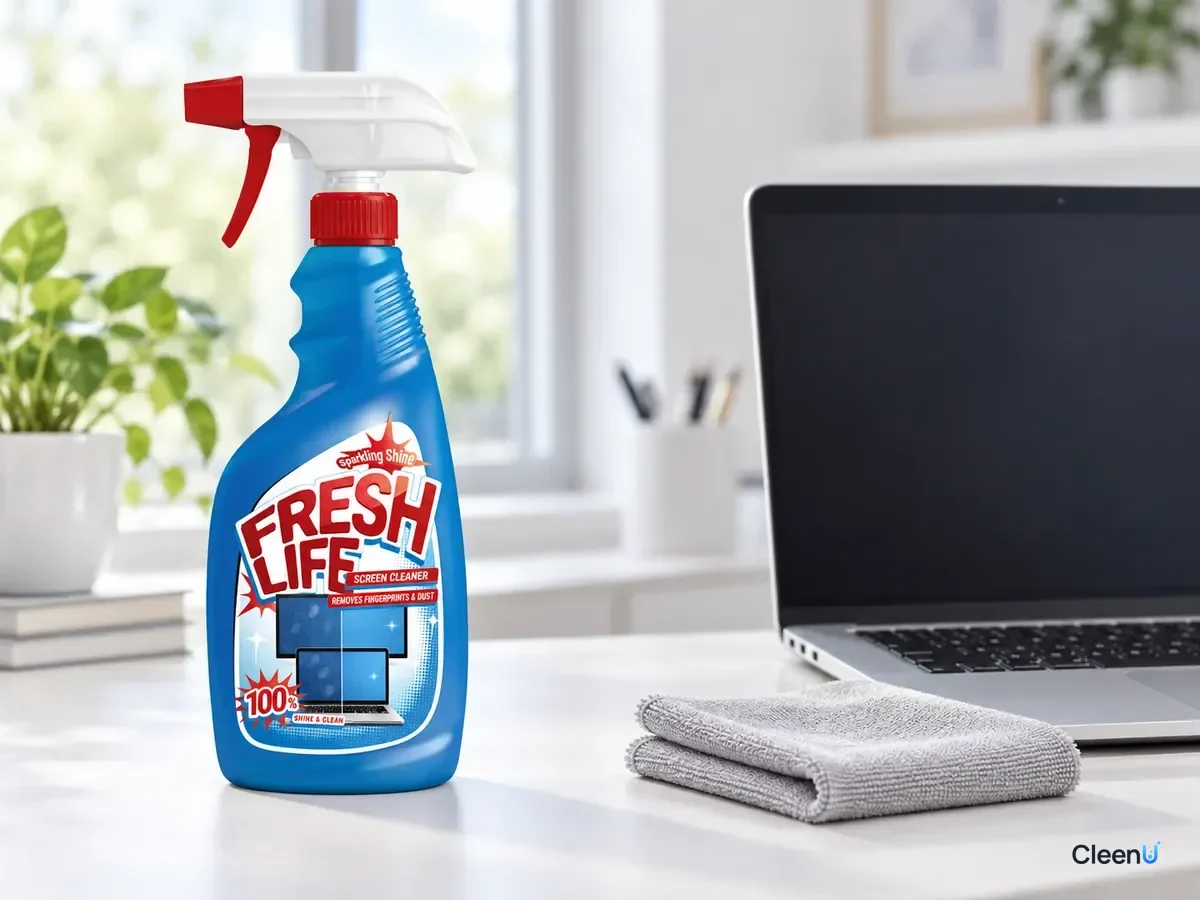
For phones, laptops and monitors, use our ammonia-free, alcohol-free Screen Cleaner.
For large and vertical screens, try Screen Cleaning Foam. For keyboards, mice, controllers and gaming desks, see Gaming Station Electronics Cleaner. For the rest of the glass in your home, read how to clean glass without streaks.
Screen cleaning worries, answered
Can I spray screen cleaner directly on the screen?
Spray the cloth instead. Spraying the screen lets liquid run into the edges and buttons. With foam, a small dab in the middle of the screen is fine.
Can I use alcohol wipes on my phone screen?
Occasionally it is fine, but frequent use of strong alcohol can wear down the oleophobic coating faster. An alcohol-free, neutral screen cleaner is the better everyday choice.
Can I use glass cleaner on my TV?
It is not a good idea. Some glass cleaners contain ammonia, which can damage anti-glare coatings and leave the screen hazy.
Will paper towels scratch my screen?
They can. Paper towels have coarse fibers and shed lint, and hard wiping can leave fine marks. Use microfiber.
How often should I clean my screens?
Phones and tablets get touched constantly, so every few days. TVs and monitors mostly need dusting once a week with a dry cloth, plus a damp wipe when fingerprints show up.
How do I get keyboard marks off my laptop screen?
Those marks are skin oil transferred from the keys. With the laptop off, wipe once or twice with a cloth lightly misted with screen cleaner, and clean the keyboard too.
Can I use screen cleaner on an OLED TV or monitor?
Yes, if it's pH-neutral and free of ammonia and alcohol. Spray it onto a microfiber cloth, never the screen, and wipe gently—OLED surfaces are soft, so don't press. Turn the display off and let it cool first, and follow the manual if it calls for a dry cloth only.
The rules for clean screens are simple. Power off, dust first, spray a neutral, ammonia-free, alcohol-free cleaner onto the cloth, wipe gently without pressing and finish with a dry cloth. Use spray on smaller screens, foam on large and vertical ones, and a lightly misted cloth on keyboards and mice. Streaks usually mean too much product or a dirty cloth. A spot that never changes needs the manufacturer, not more wiping.