
How-to
How to Clean a Keyboard, Mouse, and Game Controller
Direct answer
Disconnect or power off first, tip the keyboard upside down to shake out crumbs, and clear the gaps with a soft brush and air. Then spray electronics cleaner onto a cloth and wipe the keycaps, mouse, and controller. Never spray liquid directly on the device, and let everything dry before reconnecting.
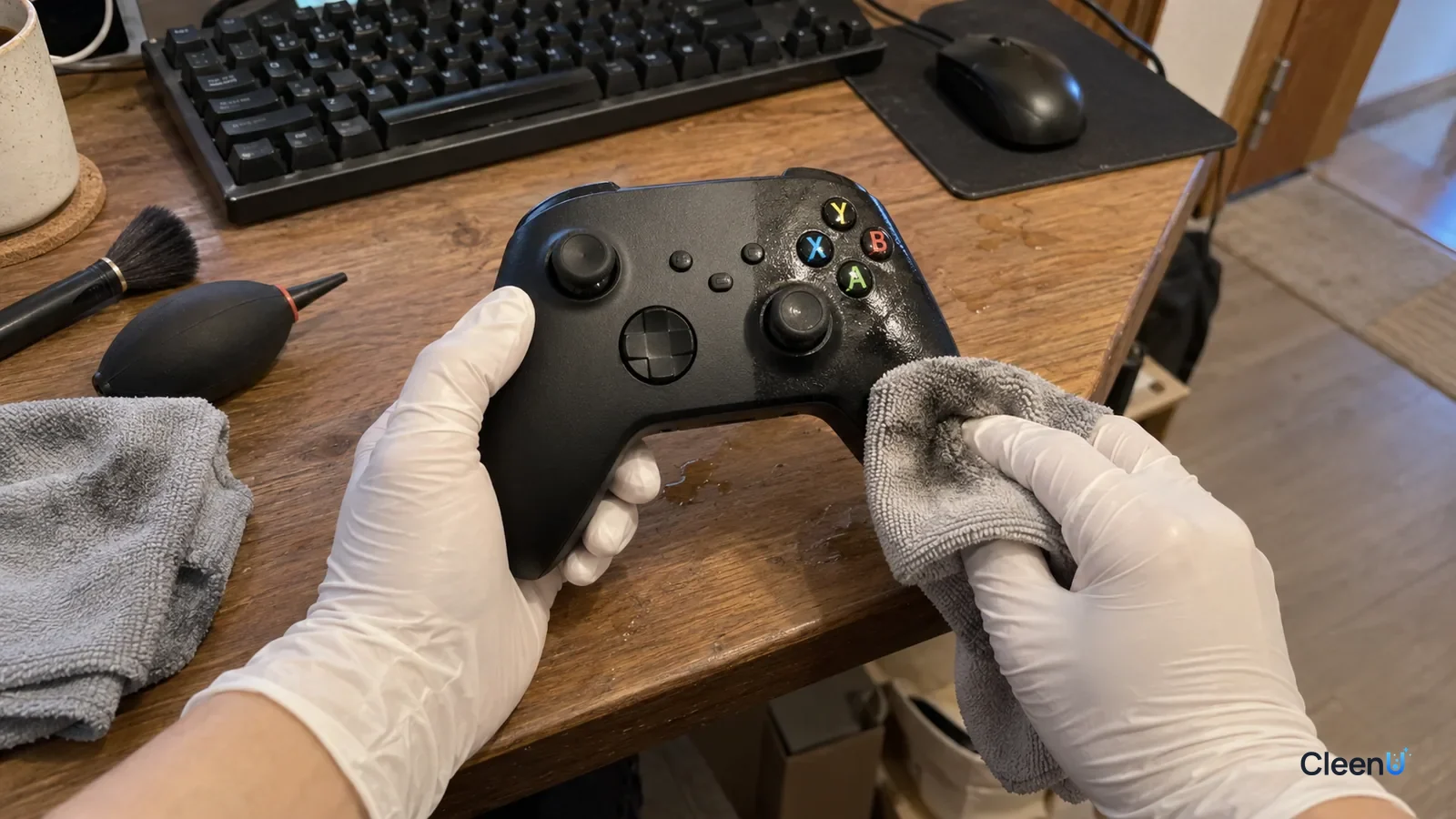
Keyboards, mice, and game controllers are some of the most-touched things in any home. Keycaps get an oily shine, especially WASD and the spacebar. The sides of the mouse feel tacky. There's a gray ring of grime around the base of the controller's thumbsticks and crumbs in the button gaps.
All of these have electronics inside and lots of gaps, so cleaning means getting the hand oil off without letting liquid in. Here's where the grime comes from, then step-by-step instructions for keyboards, mice, and controllers.
What that shine on your keys actually is
Every keystroke leaves skin oil and sweat behind. Skin oil is mostly triglycerides, fatty acids, wax esters, and squalene; sweat adds salt and water. The oil slowly oxidizes in air, darkening and getting stickier, and mixes with dust, skin flakes, and food crumbs into the shiny, tacky film on your keycaps.
On the keys you use most, all that contact and friction polishes oil into the keycap texture. ABS keycaps develop "shine," where the original matte texture turns smooth and glossy. That part is wear on the plastic. A cleaner can remove the oil on top but can't bring back the matte texture.
What's in the gaps is a different problem. Crumbs, hair, and dust fall under the keycaps and between keys, which affects feel and can make keys stick or stop working. That calls for shaking, brushing, and air, not liquid.
Why you shouldn't spray it directly
Keyboards, mice, and controllers aren't sealed. Under the keycaps are switches and a circuit board, there are gaps beside mouse buttons and the scroll wheel, and controllers have openings around the sticks, triggers, and buttons. Spray liquid on directly and it runs through those gaps, which at best leaves keys sticky and at worst shorts out the electronics.
So the rule for electronics is: power off, spray the cloth, keep it barely damp, and clean only the outer surfaces.
How an electronics surface cleaner is designed
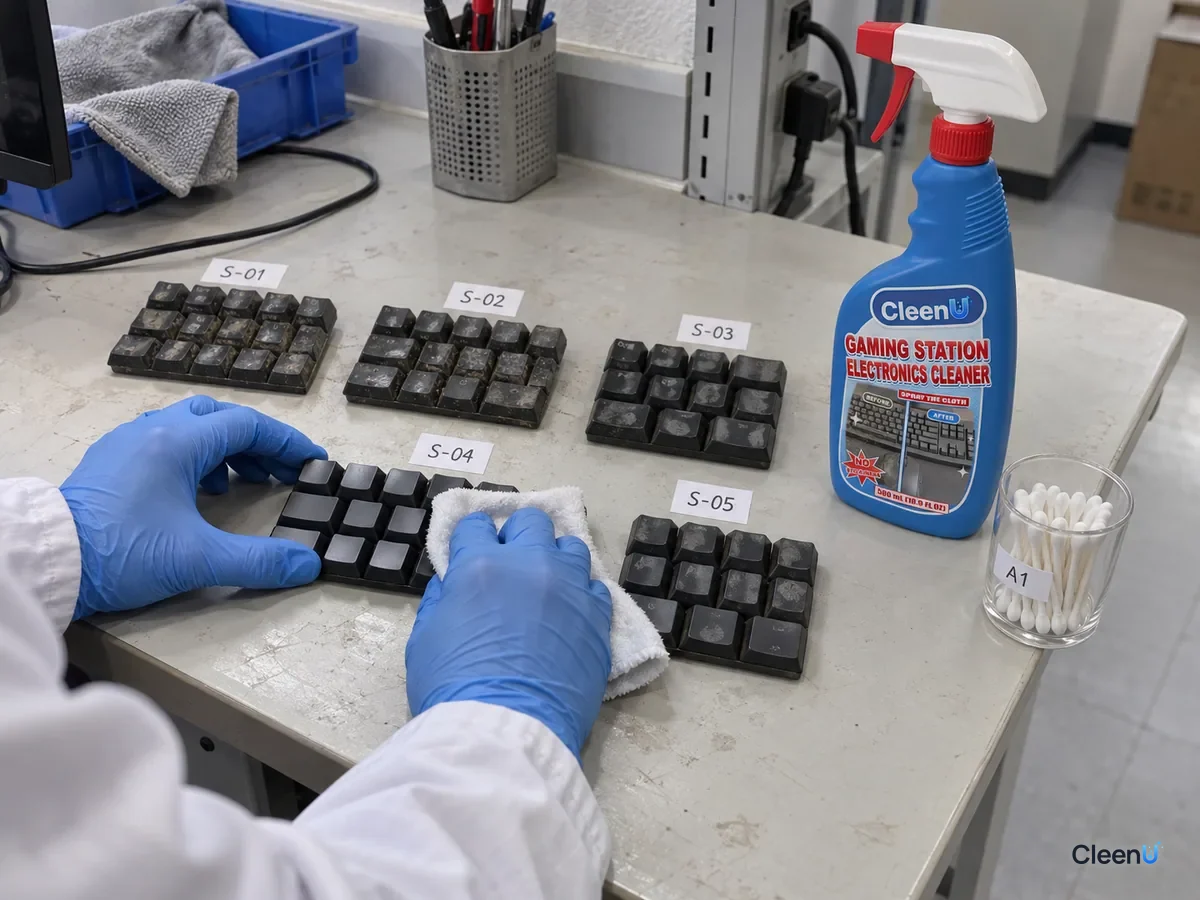
Take CleenU Gaming Station Electronics Cleaner as an example. It's a pH-neutral, fast-drying electronics surface cleaner, pH 6.5 to 7.5 as supplied, made with nonionic surfactants and fast-drying solvents, with no ammonia, bleach, or abrasive particles. It's ready to use.
The nonionic surfactants emulsify hand oil and fingerprints so the cloth can pick them up. The fast-drying solvents let surfaces air-dry within 1 to 2 minutes after wiping, which cuts down the time liquid sits at the edges of gaps. Neutral pH and no ammonia or bleach make it gentler on keycap plastic and housing finishes.
Spray it on a cloth, wipe with no dwell time, and let it air-dry in 1 to 2 minutes. It's made for keyboards, mice, controllers, headset shells, and gaming desks. It isn't for monitors or screens, devices that are powered on, spraying directly onto devices, the inside of a PC or circuit boards, or fabric ear cushions and upholstered chairs. Screens need a dedicated screen cleaner; see How to clean screens safely.
Six steps to clean a keyboard, mouse, and controller
Keyboard to controller in six steps
Power off and disconnect
Unplug wired devices. Switch off wireless keyboards and mice or take out the batteries. Turn the controller off and unplug the charging cable. Shut down a laptop before cleaning its keyboard.
Caution:Wiping a powered device triggers keypresses, and any liquid that gets in is more likely to cause a short.
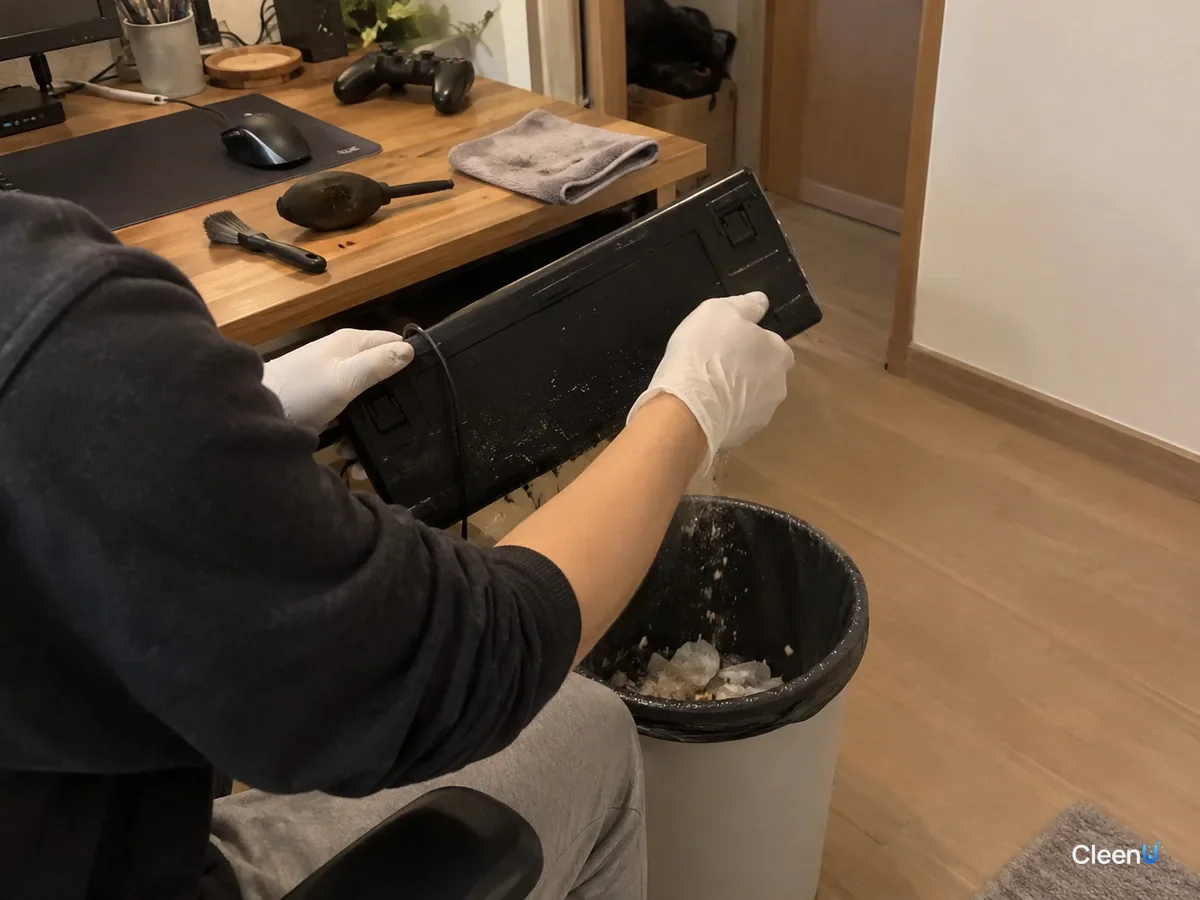
Tip it over and shake out crumbs
Turn the keyboard upside down, keys facing down, and tap the back gently over a table or trash can so crumbs and hair fall out of the gaps. You can do the same with a controller.
Clear gaps with a brush and air
Run a soft brush along the gaps between keys, then blow out remaining dust at an angle with a blower or canned air. Keep canned air upright and use short bursts so it doesn't spray propellant.
Caution:Don't dig into gaps with toothpicks or pins; you can damage the key mechanisms.
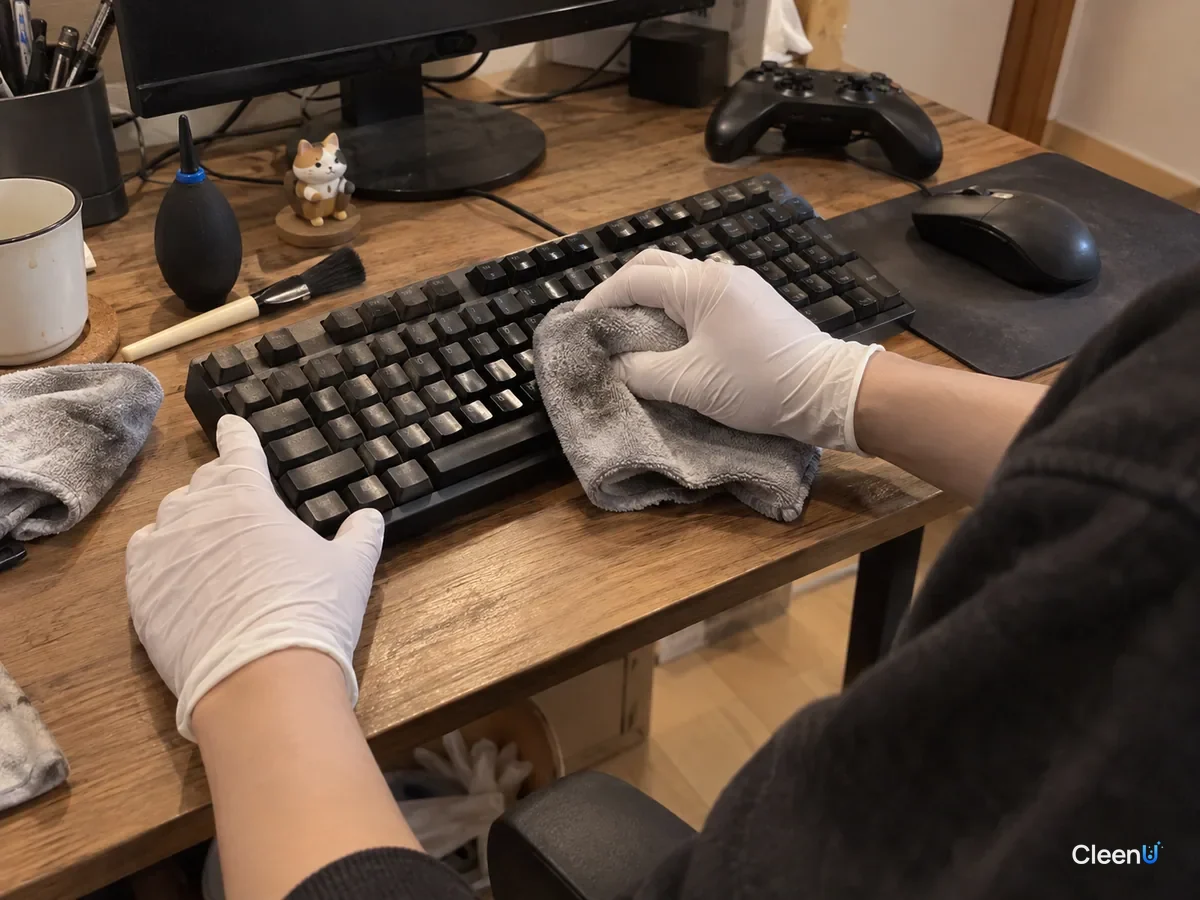
Spray the cloth and wipe the keys and case
Spray cleaner onto a microfiber cloth until it's just damp and wipe each keycap and the keyboard case. Give the most-used keys a few extra passes. Use a cotton swab with a little cleaner on keycap sides and gap edges.
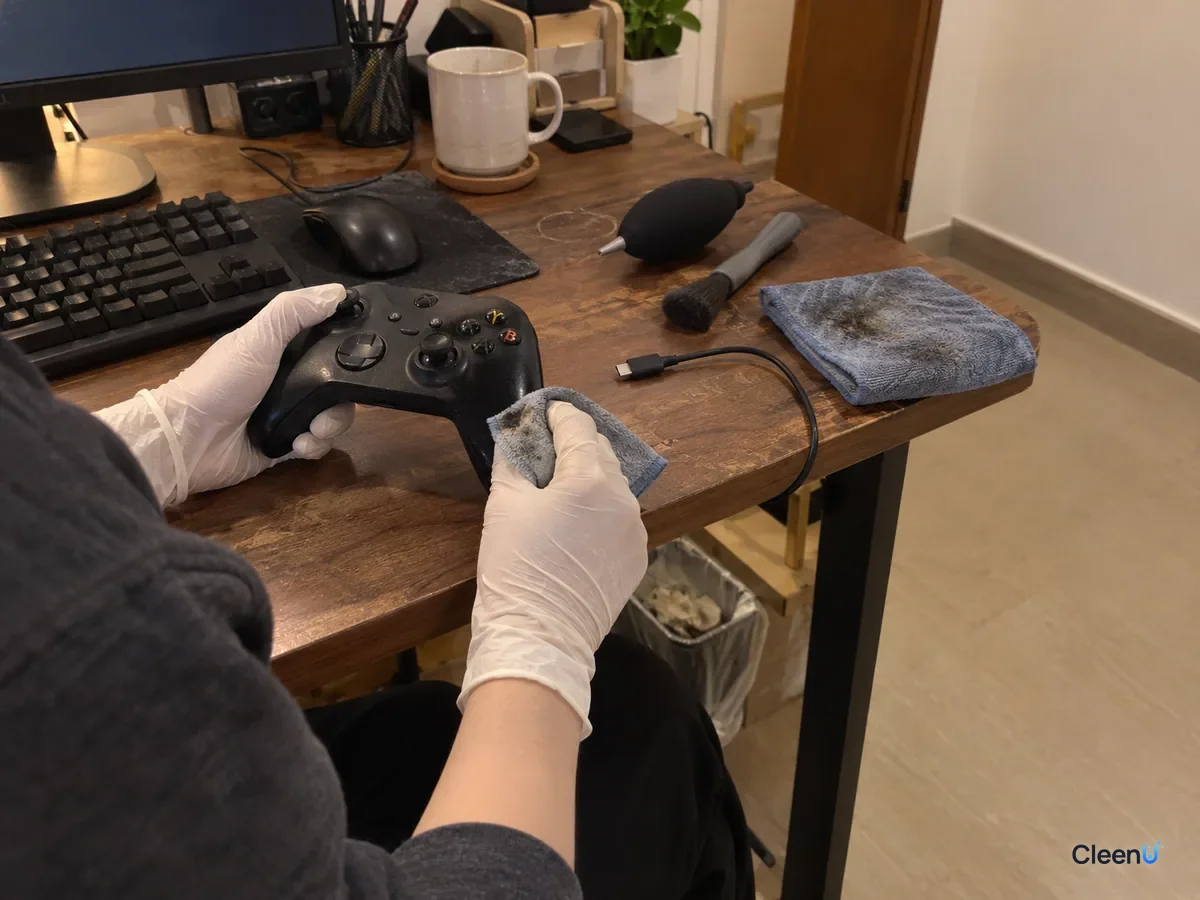
Focus on grip areas on the mouse and controller
On the mouse, wipe the sides, buttons, and around the scroll wheel; just use a dry cotton swab on the feet and the optical sensor window. On the controller, wipe the grips, buttons, and triggers, and circle the base of each thumbstick with a cotton swab and a little cleaner.
Let it dry, then reconnect
Leave everything a few minutes until surfaces and gap edges are completely dry before plugging in, powering on, or reinstalling batteries. Finish with a quick buff from a dry cloth.

Should you pull the keycaps on a mechanical keyboard?
Not for routine cleaning. Tipping, brushing, blowing out, and wiping the keycaps with a sprayed cloth takes care of most of it.
If there's a lot of debris, something was spilled, or the keycaps are very greasy, pull them with a keycap puller. Large keys like the spacebar, Enter, and Shift have stabilizers, so take care removing and reinstalling them, or leave them alone if you're unsure. Soak the removed keycaps for 10 to 15 minutes in warm water with a little mild dish soap, scrub with a soft brush, rinse, spread them out, and let them dry completely, at least overnight, before putting them back. Check the maker's instructions first for shine-through legends or special coatings.
Never soak the keyboard itself, the side with the switches and circuit board. Use a brush and air on it.
What to do if you spill on your keyboard
Disconnect it immediately, turn it upside down so liquid drains out of the gaps, and blot the surface with a dry cloth.
If it was plain water, leave it upside down to dry for at least a day or two before trying it.
If it was soda, coffee, or anything sugary, it'll leave sticky residue inside as it dries, and keys tend to stick or fail. On a mechanical keyboard, pull and clean the keycaps in the affected area. Membrane and laptop keyboards are harder to get into, so take them to the manufacturer or a repair shop.
Don't use a hot hair dryer; the heat can warp the plastic.
How often to clean
Keyboards, mice, and controllers: wipe the outside weekly with a cloth sprayed with cleaner, and do the shake, brush, and blow-out monthly.
Shared devices like a family game console or office computer: wipe the touch points with a sprayed cloth between users.
Not eating while you game or type, and washing your hands first, is the single most effective way to cut down on grime.
Different materials, different technique
ABS keycaps are fairly soft, and finger oil gets pressed into the texture over time, so some shiny spots after cleaning are normal. PBT keycaps resist wear better and usually return to a dry, matte feel once wiped. Soft-touch coatings and rubber side grips on mice are more sensitive to solvents. Use a drier cloth, make one light pass and stop; don't scrub back and forth. If the coating is already sticky or the color comes off on the cloth, the material is breaking down, and more wiping will only make it worse. Glossy controller and headset shells show cloth marks and water spots easily, so finish with a clean dry cloth, buffing in one direction.
Here's how to tell you're done. A finger slides across the keys without dragging. A dry cloth pressed on them no longer picks up gray-yellow grime. The sides of the mouse don't feel tacky. A swab run around the base of the thumbstick comes out mostly clean. At that point, stop. Extra wiping won't make anything cleaner.
Turning over stations at gaming cafes and esports hotels
Turnover is fast, so keep the routine fixed and keep liquid out of the gear. Give each station its own microfiber cloth. Spray the cloth, then go keyboard, mouse, headset shell, controller, desk, switching to a fresh side as the cloth gets dirty. The cleaner is ready to use, needs no dwell time, and air-dries in 1 to 2 minutes, so surfaces are dry before the next guest sits down. To plan purchases, estimate wipes per station per day. For volume orders, describe your setting in the inquiry. Minimum order is 500 bottles, and the formal quotation governs.
Stop if you see this
If liquid gets inside a keyboard or controller, power it off, turn it upside down to dry, and don't test it right away. If keys stop working or double-type, or a thumbstick drifts after cleaning, contact the manufacturer. Never spray cleaner directly on the device, and don't use it on screens, inside a PC, on circuit boards, or on fabric ear cushions or upholstered chairs.
Cleaning keyboards, mice, and controllers: common questions
Can I wipe my keyboard with rubbing alcohol?
A little is okay, but high-strength alcohol can whiten or fade some keycap coatings and legends. A neutral electronics cleaner sprayed on a cloth is the safer choice.
Why is my mouse sticky?
Usually oxidized hand oil, or a rubberized coating breaking down. Wipe surface oil with a cloth sprayed with cleaner. A coating that's gone sticky is material breakdown, and cleaner can't fix it.
Can I wash off keycap shine?
You can remove the oil on top, but ABS keycaps worn smooth from friction won't get their matte texture back.
How do I clean the black grime around thumbsticks?
With the controller off, circle the base of the stick with a cotton swab dampened with a little cleaner, then dry it with a clean swab. Don't drip liquid into the stick gap.
Can I wash a whole keyboard in water?
No. Only removed keycaps can be soaked. Clean the keyboard itself with a brush and air.
How soon can I use it after cleaning?
A fast-drying electronics cleaner air-dries in 1 to 2 minutes. Make sure surfaces and gap edges are completely dry before reconnecting.
For a neutral, ammonia- and bleach-free cleaner that dries in a minute or two when used on a cloth and is made for hand oil on keyboards, mice, and controllers, take a look at our Gaming Station Electronics Cleaner.
The shine on keyboards, mice, and controllers is skin oil and sweat that's oxidized and mixed with dust, while the gaps collect crumbs and lint. Power off and disconnect, tip and tap out crumbs, clear gaps with a brush and air, then wipe keycaps and housings with a neutral, fast-drying electronics cleaner sprayed onto a cloth, and let everything dry before reconnecting. Never spray the device directly, and never soak the keyboard itself. Wipe weekly, clean the gaps monthly, and wash your hands before you play.