
Troubleshooting
Robot Dock Not Using the Cleaning Solution? Auto-Dosing Troubleshooting
Direct answer
Check that auto-dosing is turned on in the app, the solution tank is fully seated, and the outlet and line aren't clogged. Some docks only work with the brand's own cartridge, so after switching to another solution you may need to add it to the clean water tank by hand.
Check these five things first
- Auto-dosing switch and dosing level in the app: turned off, or set to the lowest level
- Tank seating: pushed all the way in, latch clicked, outlet lined up with the dock port
- Tank cap: closed properly, with the vent hole not sealed by dried solution
- Outlet and check valve: a sticky or crusty ring around the opening
- Owner's manual: whether the auto-dosing tank accepts only the original cartridge or only specified solutions
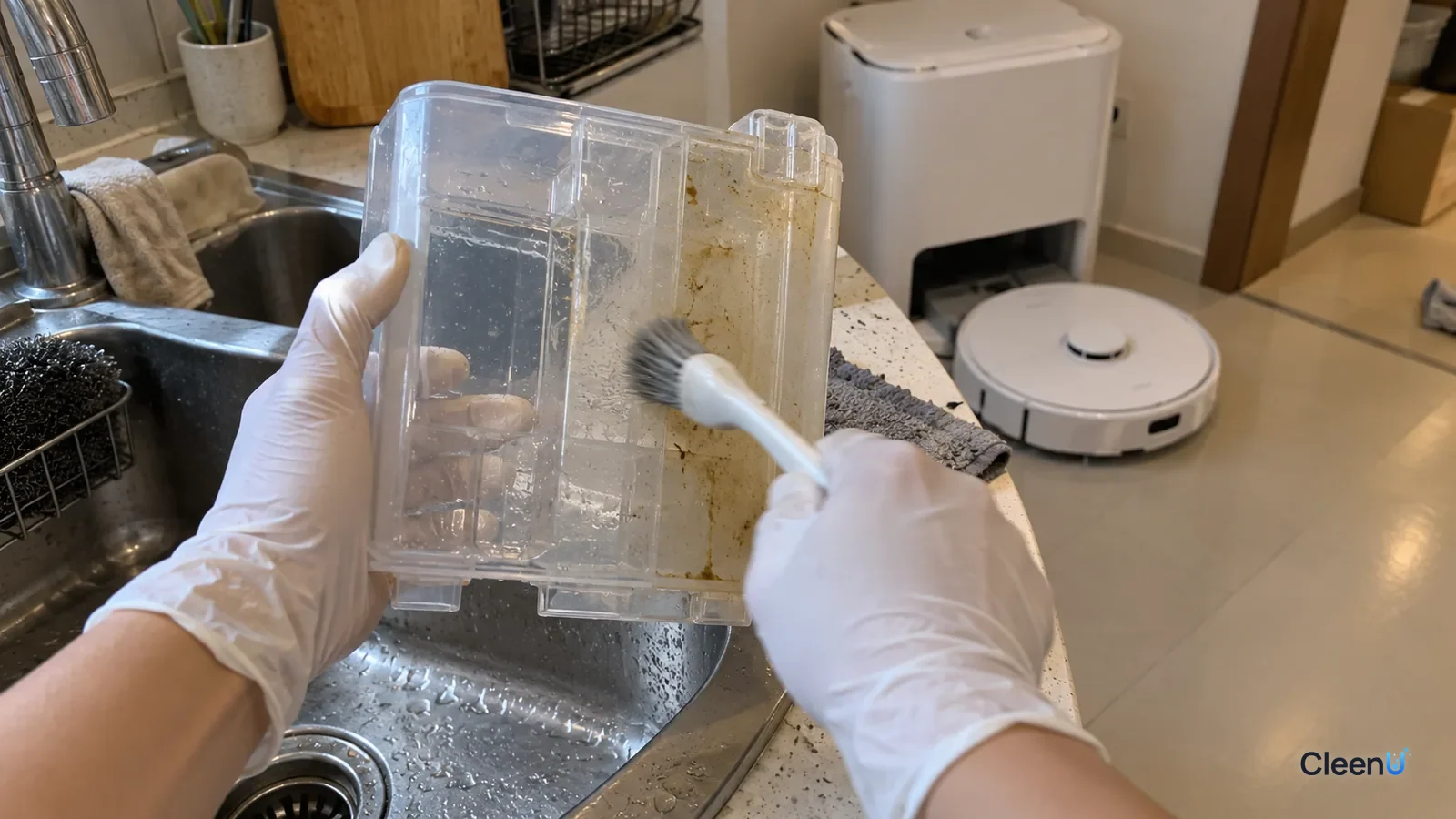
The story usually goes like this. The solution that came with the robot runs out, you pour a new bottle into the dock's auto-dosing tank, and a week later the level has barely moved. Or the app immediately says "No cleaning solution detected" or "Solution low." The robot keeps mopping, but you can't tell whether any solution is actually going in.
In most cases the solution hasn't stopped working. The problem is on the dock side: a setting, how the tank is seated, how the dock senses liquid, a blocked path to the pump, or a dock that only accepts its own cartridge. Start with the quick checklist below, then work through the causes, what each one looks like, how to fix it, and how to keep it from coming back.
"Not using it" may just mean "using very little"
Auto-dosing releases very small amounts. CleenU Robot Mop Cleaning Solution is used at about 1:50 to 1:100, so a clean water tank of roughly 1 liter needs only about 10 to 20 mL of concentrate per fill. If the dosing tank holds 300 to 400 mL, one mopping run drops the level by a few millimeters at most. Mop once a day and the level still only moves a little over a week.
So don't judge by one or two days. Fill the tank, draw a line on the outside with a marker, and check again after three to five runs. If there's a clear gap below the line, dosing is working and you're just seeing a slow, normal drawdown. If nothing has moved, keep troubleshooting.
Results on the floor are another clue. Greasy footprints by the kitchen and gray scuffs in the entryway look noticeably different with solution versus plain water. If the level hasn't moved and those marks keep surviving several runs, the dock almost certainly isn't dispensing.
How a dock "knows" there's solution in the tank
Docks don't all detect solution the same way, and that decides whether switching brands triggers a "not detected" message. Most fall into three groups.
Level sensing. A sensor in or beside the tank checks whether liquid is present. Common designs are electrode sensors (two metal contacts that read "liquid" only when the liquid conducts electricity), capacitive sensors (which detect the change in dielectric constant through the tank wall), and optical sensors (which look for liquid blocking or bending light through the wall).
Pump feedback. The dock watches the dosing pump's current or run time. When the pump runs dry, the reading changes and the app flags low solution.
Cartridge recognition. A few models use a dedicated cartridge with a chip or a specific keyed shape. The dock only starts dosing when it recognizes that cartridge. With these, a different solution, or a different liquid poured into the original cartridge, can show up as "not detected."
The manual usually tells you which type you have. If it says the dock supports original cartridges only, don't fight it. Add solution to the clean water tank by hand instead. Cleaning results are the same; you just measure each time.
Why a new solution can confuse the sensor
"Liquid in the tank" isn't the same signal for every liquid. A few physical properties explain why a dock can react differently after a switch.
Conductivity. Electrode sensors need the liquid to conduct. Tap water carries enough dissolved minerals to do that. A concentrate's conductivity depends on its ionic content: formulas built on anionic surfactants and salts conduct more, while formulas built mainly on nonionic surfactants with very little salt conduct less. If a dock's electrode threshold was tuned around its own solution, a liquid with very different conductivity can read "empty" while the tank is full, or fail to warn when it's nearly empty. That's a match between sensor design and liquid properties, not a sign that either liquid is better or worse.
Dielectric constant. Capacitive sensors respond to the dielectric constant. Water's is high; the more surfactant and solvent in a concentrate, the lower it generally gets. Most docks leave enough margin, but a few models are sensitive to the type of liquid.
Clarity and foam. Optical sensors rely on the liquid blocking or bending light. Very clear or pale liquids, or a layer of bubbles from pouring too fast, can throw off the reading. Pour slowly down the side of the tank, let it sit a few minutes so the bubbles rise and break, then put it back in the dock.
These are dock-side compatibility issues, and the fixes are dock-side too: confirm in the manual which solutions are allowed, and if it says nothing or only accepts its own cartridge, dose by hand.
The tank is in, but the pump can't draw: three mechanical causes
If the dock shows solution present and auto-dosing is on but the level still won't drop, the problem is usually somewhere between the tank and the pump.
The tank isn't seated. The outlet on the bottom of the tank plugs into a port on the dock, and a pin in that port usually pushes the check valve open. If the tank isn't pushed all the way in, the valve stays shut and the pump just runs dry. Pull it out and reseat it until it clicks and sits flush.
The vent is blocked. As liquid leaves the tank, air has to get in. If dried residue or dust seals the vent in the cap, or the cap is cranked down so tight it closes the vent path, a vacuum forms and flow stops. The classic sign: it worked for a few runs, then quit. Rinse the cap in warm water and let it dry.
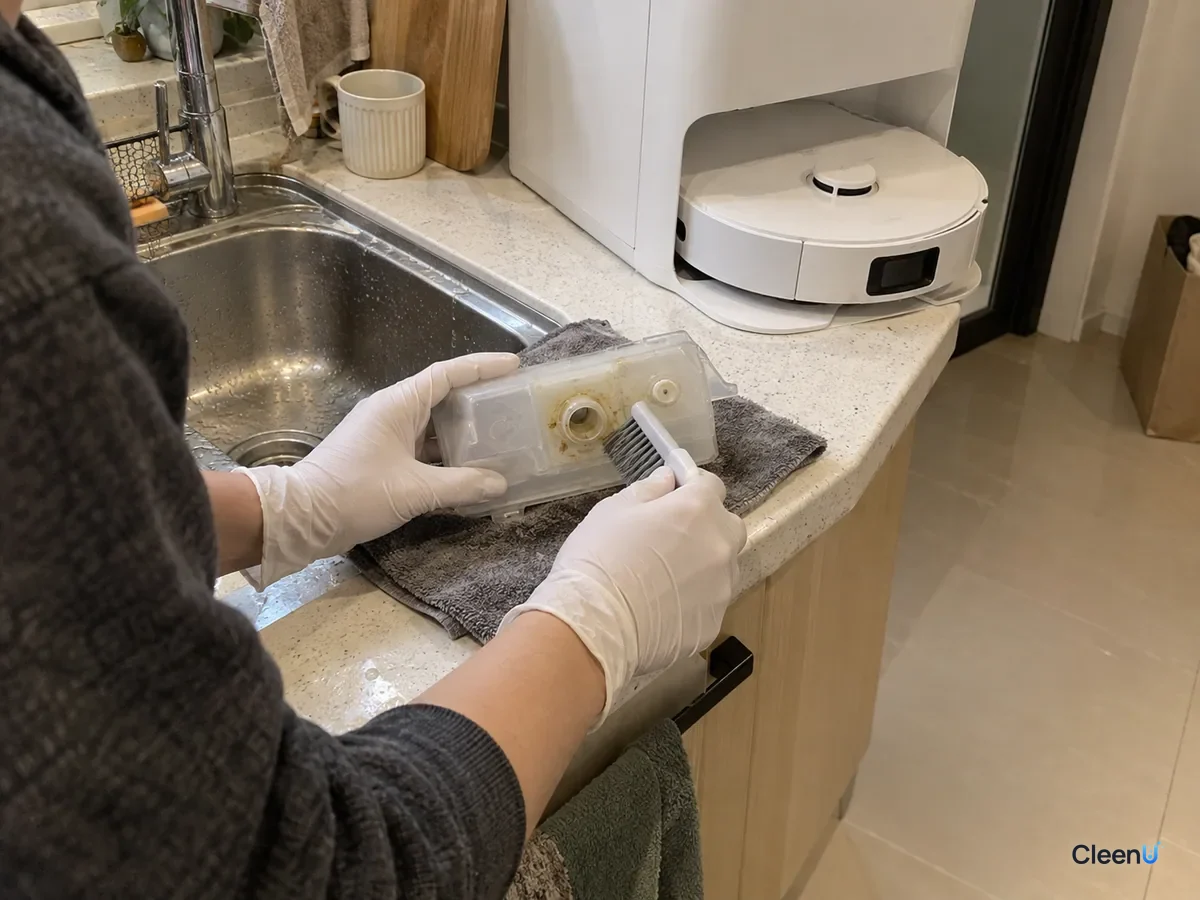
The outlet is crusted or the liquid has thickened. When a dock sits unused, water evaporates at the outlet and leaves a paste that glues the check valve shut. Mixing two solutions can also thicken or separate. For the full cleanup, see How to fix a robot dock's auto-dosing when nothing comes out.
Why problems show up right after a refill
Several things tend to happen at the moment you switch. Old solution stays in the bottom and mixes with the new one. A quick rinse leaves water in the tank. A fast pour fills the tank with foam.
Leftover water mixed with concentrate creates pockets of in-between concentration. Concentrated surfactant systems can pass through a range where the molecules pack into more ordered structures, and the liquid turns gel-like right at the outlet. That's why the right order is: empty the old solution, rinse with warm water, let it dry completely, then add the new concentrate in one go. Don't dilute in the tank.
Old solution or air can also sit in the line. Many docks have a "drain line," "clean dosing line," or "prime" function in the app or on the unit. Run it once after a switch to push out old liquid and air so the new solution can reach the pump.
Common causes and what to do
| Cause | What you see | Fix | Prevent it |
|---|---|---|---|
| Auto-dosing off or set too low | Level never moves; greasy footprints remain | Turn auto-dosing on, start at a low-to-medium level | Recheck settings after app updates or resets |
| Normal low usage | Level drops only a little over several days | Mark a line, check after three to five runs | Expect slow drawdown at 1:50 to 1:100 |
| Tank not seated | App shows no solution or a dosing error | Reseat until it clicks and sits flush | Check the tank is flush after every refill |
| Dock accepts original cartridges only | "Not detected" as soon as another solution goes in | Don't force it; dose by hand in the clean water tank | Read the manual's solution rules before switching |
| Level sensor doesn't match the new liquid | "Empty" with solution in the tank | Wipe the sensor contacts; confirm allowed solution types | Use a solution type the manual allows |
| Blocked vent, vacuum in tank | Worked a few times, then stopped | Rinse the cap in warm water and dry it | Close the cap to the mark without overtightening |
| Crusted outlet or thickened mix | Sticky ring around the outlet | Empty, rinse warm, dry, refill | One solution at a time; empty before long breaks |
| Air or old liquid in the line | Still nothing after a switch | Run the drain or line-cleaning cycle | Run it once after every switch |
Switching solutions the right way
Get this order right and most "it won't recognize it" or "it won't draw" problems never happen.
Check the manual first: what solutions auto-dosing allows, whether it requires the original cartridge, and whether concentrate goes in undiluted. Go on only if third-party solutions are allowed.
Empty the old solution. If it's the same product and hasn't gone off, you can save it in a clean container. If you're not sure, don't reuse it.
Rinse the tank, cap, and outlet several times with warm water. Clear any crust at the outlet with a cotton swab. Don't poke the check valve with anything sharp.
Let the tank and cap dry completely. Leftover water dilutes the concentrate and can turn into gel.
Pour the new concentrate slowly down the side, up to the fill line, not to the brim. Let it sit a few minutes for bubbles to clear, close the cap, and seat the tank.
Run the line-drain or cleaning cycle once, mop a room, and mark the level.
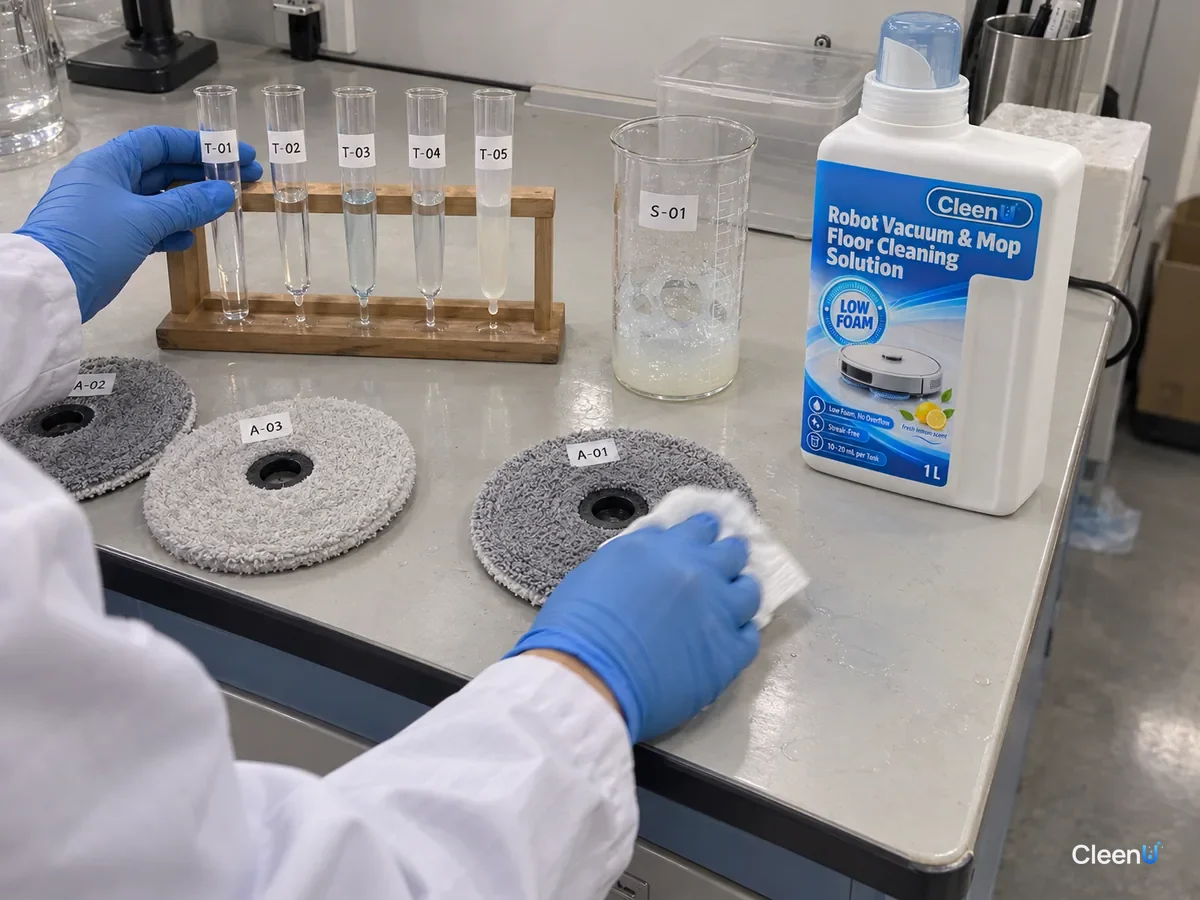
CleenU Robot Mop Cleaning Solution is a neutral (pH 6.5–7.5 concentrate), low-foam concentrate built on low-foam nonionic surfactants with a defoamer, with no wax, no chlorine, and no particles. Its viscosity suits dock auto-dosing tanks, and it also works by hand in the clean water tank at about 1:50 to 1:100; 10 to 20 mL per fill is usually enough. Whether your specific dock accepts it and what dosing level to use still comes from your owner's manual.
On compatibility: CleenU Robot Mop Cleaning Solution has been tested on common models, such as Roborock, Roomba, Ecovacs, Dreame, Narwal, and Tineco. If your manual specifies the brand's own solution, or the machine is still under warranty, follow the manual and warranty terms first.
When auto-dosing won't cooperate, dose by hand
If your dock only accepts its own cartridge, or keeps throwing errors after a switch, the easiest fix is to turn off auto-dosing and add solution to the clean water tank. Scale it to the tank: about 10 to 20 mL per liter of water, 20 to 40 mL for a 2-liter tank, measured with the cap or a measuring cup. For extra-dirty areas, a second pass works better than more solution; overdosing leaves a sticky film. For the math, see How much cleaning solution to put in a robot mop, and for where it goes, see Where to put cleaning solution in a robot vacuum.
When dosing by hand, turn off auto-dosing in the app and empty and dry the dosing tank, or the dock may keep warning that solution is low. Dump leftover water from the clean tank after each run and mix fresh each time, so diluted solution doesn't sit and start to smell.
This article is part of the Robot Vacuum Cleaning Solution & Maintenance Guide, which covers the full maintenance schedule and links to every troubleshooting guide.
Stop using auto-dosing if you see this
Leaks from the dosing tank or the base of the dock; a dosing pump that's noisy or hot; an error that keeps coming back after cleaning and reseating. Turn off auto-dosing in the app, unplug the dock, switch to hand-dosing in the clean water tank, and contact the manufacturer's support. Don't take the pump or lines apart yourself.
Robot dock solution not dispensing or detected: common questions
My dock keeps saying "solution not detected" after I switched brands. What now?
Check whether the manual limits the dock to its own cartridge. If it does, don't force it. Turn off auto-dosing and add solution to the clean water tank at the right ratio instead.
The level hasn't dropped in days. Is it even being used?
Mark a line and check after three to five runs. Each dose is only about 10 to 20 mL, so the level falls slowly. If it hasn't moved at all after that, check settings and the outlet.
Can I refill the original cartridge with a different solution?
We don't recommend it. A dock that recognizes its cartridge may keep dosing as if the original liquid were inside, or fail to recognize it. Add solution the way your manual allows.
It says solution is low, but the tank is full. Is the sensor broken?
Usually not. Wipe the sensor contacts and tank wall, reseat the tank, and let bubbles settle after pouring. If the error stays, confirm which solutions the manual allows before booking a repair.
Can I just rinse the old solution down with water and pour the new one in?
No. Water left in the tank can mix with concentrate into a thick gel that blocks the outlet. Rinse, let it dry completely, then refill.
Does CleenU Robot Mop Cleaning Solution work in auto-dosing tanks?
Yes, its viscosity suits dock auto-dosing tanks. Whether your model accepts it and what level to use come from your manual. If the manual doesn't allow it, dose by hand in the clean water tank.
For a neutral, low-foam concentrate that flows well in auto-dosing tanks and measures easily by the cap in a clean water tank, take a look at our Robot Vacuum & Mop Floor Cleaning Solution.
If your robot stops using solution or says it can't detect it after a switch, don't blame the liquid first. Work through it in order: auto-dosing switch and level, tank seating, vent and outlet, a line-drain cycle, then the manual's rules on original cartridges. Auto-dosing uses very little per run, so judge by marking a line over several mops. If the dock only accepts its own cartridge or keeps erroring, turn off auto-dosing and dose by hand in the clean water tank; the cleaning results don't suffer.